How to Make a Guest Wi-Fi QR Code That Connects
A guest Wi-Fi QR code is one of the few QR codes that never touches the internet. The phone reads the network name and password out of the printed square, offers to join, and connects. That is what makes it convenient, and it is also why it fails in ways that look mysterious: there is no server to check, no log, and no error message beyond a join that quietly does not happen.
This guide is for the person who has to keep that code working at a café counter, a hotel reception or an office lobby: what is inside the code, which settings break it, how to test it, and how to plan the print run around the day you change the password.
What is inside the code, field by field
The format phones recognise was popularised by the open-source ZXing barcode project and is now read by the built-in camera apps on iPhone and Android. A typical guest network looks like this:
WIFI:T:WPA;S:Lobby Guest;P:sunflower-42;;
- WIFI: tells the scanner this is a network record, not a web address or plain text.
- T: the security type:
WPA,WEP, ornopassfor an open network. - S: the network name (SSID), exactly as the router broadcasts it. Capitals and spaces count.
- P: the password. Left out entirely on an open network.
- H:true is optional and marks a hidden network.
- ;; the final double semicolon closes the record. Without it, some scanners treat the whole thing as text and open a search instead of a join prompt.
Every field ends with a semicolon, and the record ends with one more. That single rule explains most of the failures below.
The characters that break it, and the backslash fix
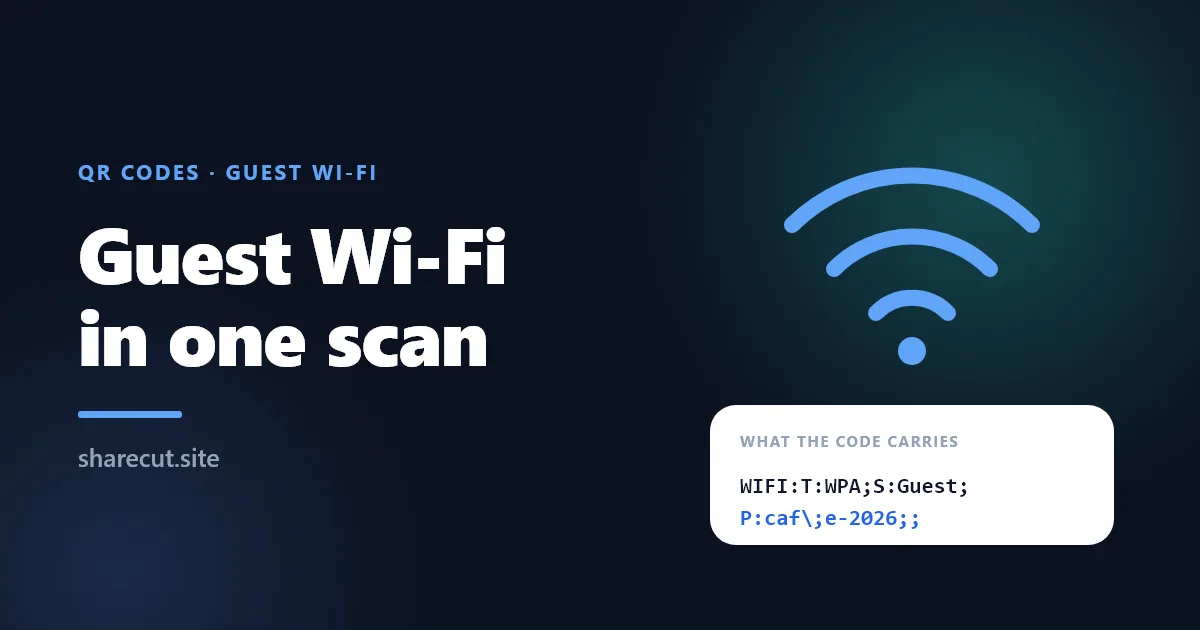
Because the semicolon ends a field and the colon separates a field's letter from its value, a password such as Caf;e:2026 confuses the scanner: it reads Caf as the password and discards the rest. The phone then tries to join with the wrong password, and from the guest's side the network simply refuses.
The fix is escaping: a backslash in front of each special character. Five characters need it: the backslash itself, the semicolon, the comma, the colon and the double quote.
- The password
Caf;e:2026becomesCaf\;e\:2026 - The SSID
Bar, TerracebecomesBar\, Terrace - A password containing a backslash,
a\b, becomesa\\b
The ShareCut QR generator applies this escaping automatically when you fill in its Wi-Fi form, which is the practical reason not to hand-type the string. If you build the code with another tool, check that it escapes too: the bug only appears for passwords that happen to contain one of those five characters, so a tool can look fine for months.
Two problems escaping cannot fix. A trailing space at the end of the SSID is invisible on most router admin pages and fatal in the code. And look-alike characters, such as a capital I and a lowercase l, cause trouble the moment someone retypes a password from a printed sticker. Copy the SSID and password straight from the router configuration.
WPA, WEP, open and hidden networks
WPA covers the modern versions
Use T:WPA for any password-protected network running WPA2, or WPA2 and WPA3 in mixed mode. The field names the family, not the version: the phone negotiates the actual protocol with the router after reading the password. A network set to WPA3 only is the one case to test with extra care, because scanner support for WPA3-only records is less uniform than for WPA2.
WEP only if you cannot change the router
WEP was superseded when the IEEE ratified 802.11i in 2004 and is easy to break. The generator still offers it because old hardware exists, but a guest network running WEP is a reason to update the router, not to print a code. Current phones flag WEP networks as insecure, which is not the first impression you want at a reception desk.
Open networks
Choose no password and the code leaves out the P field: WIFI:T:nopass;S:Lobby Guest;;. If your open network sends guests to a captive portal, such as a terms page or a voucher screen, the QR code only gets them onto the network. The portal still appears afterwards; the code cannot click through it for them.
Hidden networks
Ticking hidden adds H:true, which tells the phone to look for a network that does not broadcast its name. It works, but ask why a guest network is hidden at all. Hiding an SSID is not a security measure, since the name still travels over the air whenever a device connects, and hidden networks are the configuration most likely to behave differently from one phone to the next. Broadcast the guest SSID and keep hiding for networks guests should never see.
Why iPhone and Android say different things
Staff often report that the code works on one phone and is broken on another, when what actually differs is the wording. On an iPhone the camera shows a banner offering to join the named network. On Android the prompt depends on the manufacturer: it may say connect or join, or open a preview sheet with the network details before connecting.
None of that is the code. The payload is identical; each operating system presents it its own way. What you check when you test is narrower: does the prompt show the right network name, and does the phone end up connected? If both are true on an iPhone and on an Android phone, the code is right, and a clearer caption on the card will help guests more than regenerating it.
A useful cross-check: many Android phones can display a QR code for the network they are currently on, from the share option in the Wi-Fi settings. It uses the same WIFI: format, so if your printed code and the phone's own code both connect, you have ruled out the payload.
Use a separate guest network, not the staff one
Anyone who can photograph the code can read the password out of it, exactly as if it were printed in plain text. Treat the code as public. That is fine for a guest network and a real problem for the network your till, office printer, file storage or security cameras sit on.
- Create a dedicated guest SSID on the router, ideally with client isolation, so guests cannot see each other's devices or yours.
- Give it a different password from the staff network, so rotating one never touches the other.
- Name it plainly, such as Lobby Guest, so the join prompt matches the caption on the card.
- If the router supports it, cap guest bandwidth, so one large download at a table does not slow down everything else.
It cannot be tracked or edited, so plan rotation and placement together
A Wi-Fi QR code is not a link. The phone never contacts ShareCut or anyone else, which means two things that surprise people: there is no scan count, and there is no way to change what an already printed code says. New password, new code, reprint. It is the trade-off explained in static vs dynamic QR codes, and for Wi-Fi it is not optional: the join prompt only appears because the credentials are inside the square.
So the decision to make before printing is not about colours. It is about how often you will change the password and what each reprint costs you:
- Keep a list of every place the code appears. Counter, each table, reception, the welcome folder, the meeting room. A rotation that misses one card leaves a dead code in front of a guest.
- Print on something cheap to swap. A sheet slid into an acrylic table stand is a two-minute job; a code engraved on a wooden sign is not.
- Rotate on a schedule you already have. If table cards get reprinted with each seasonal menu, change the guest password the same day.
- Print the date in small type on the card, so staff can see at a glance which version is out.
If you need to rotate often, there is a different design: a QR code that opens a page you control, such as a TreeLink page with the current password in its description. You edit the page when the password changes and the printed code keeps working, and because the scan goes through a short link it is counted. The cost is real: guests copy the password instead of tapping join. For most venues, the one-tap code plus a planned reprint is the better guest experience.
A setup that works the first time
- Create or confirm a separate guest SSID and password on the router, and copy the SSID exactly from the router's settings.
- Open the QR generator in static mode and choose the Wi-Fi form. It works without signing in.
- Enter the SSID and password, pick WPA (or no password for an open network), and tick hidden only if the network really is hidden.
- Style the code with dark modules on a light background and add a caption such as Scan to join Lobby Guest.
- Test on two phones, one iPhone and one Android, after making each of them forget the network. A phone that already knows the password connects regardless of what the code says.
- Download the PDF or SVG for printing so the code stays sharp, and keep the PNG for screens.
- Print one copy, test it again from where a guest would actually hold their phone, and only then print the rest.
- Record where each copy went and the date, so the next rotation is a checklist rather than a hunt.
Where to put it
Put the code where guests are when they want to connect, which is rarely the entrance: people ask for the Wi-Fi after they sit down. In a restaurant that means the table, next to or on the same card as the menu code, and the placement advice in QR codes for restaurant tables applies directly. If both codes share a card, label each one clearly, so nobody scans the menu expecting to get online.
In a hotel room or a short-let flat, the back of the door and the welcome folder work better than the router itself, which is usually hidden behind furniture. In an office, the meeting room table beats the reception wall, because visitors connect when the meeting starts. For print sizes, styling limits and the reasons a code opens a browser instead of joining, the Wi-Fi QR code page covers the basics with the generator built in.
Make your guest Wi-Fi code
Fill in the Wi-Fi form on the ShareCut QR generator, test the result on an iPhone and an Android phone, and print once you have seen both connect. It is free, it escapes the awkward characters for you, and it exports PNG, SVG and PDF.