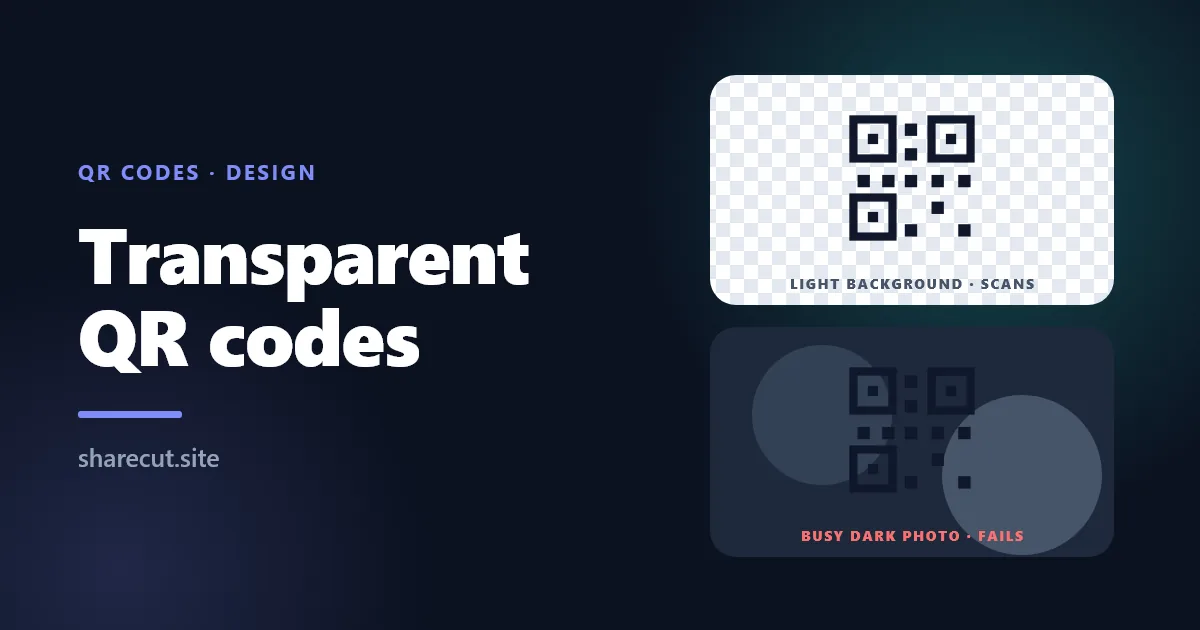
How to Make a QR Code with a Transparent Background
A QR code with a transparent background is one of those requests that sounds purely cosmetic. You want the code to sit on your flyer, label or slide without a white box around it. The file itself is easy to make. Whether phones can still read it depends entirely on what ends up behind it, and that is where most transparent codes go wrong.
This guide covers how to make one, when it works, when it fails, which file format to use, and the short test that tells you before the print run instead of after.
What "transparent" changes, and what it does not
A QR code is a grid of dark and light squares, called modules. A scanner finds the code by its three square corner markers, then reads the pattern by comparing dark modules against light ones. The standard that defines QR codes, ISO/IEC 18004, also asks for an empty margin around the code, the quiet zone, four modules wide. That margin is how the scanner knows where the code ends and the rest of the world begins.
A transparent background removes the light colour from the image. The light modules and the quiet zone stop being white and become whatever is underneath. So the code no longer controls its own contrast: your design does.
- On a flat, light background (white, cream, pale grey, light pastel) nothing really changes. The background does the job the white square used to do.
- On a mid-tone colour the difference between dark and light modules shrinks, and older or cheaper phone cameras start to miss it.
- On a photo or a pattern the light modules are no longer uniform. Some are bright, some are not, and the corner markers can blend into the picture.
- On a dark background with dark modules there is nothing left to read.
How to make a QR code with a transparent background
- Create the link first. Put a short link in front of the destination rather than the full address. Fewer characters means fewer, larger modules, which survive design choices better. A dynamic short link also lets you change the destination later without reprinting. See how to turn a link into a QR code for the full walkthrough.
- Open the QR settings. In ShareCut, open the link in the Studio, go to the QR code section, and switch on Transparent background in the colour settings. Styling the code, colours, dots and corners, is available to every account that owns the link, including free ones.
- Keep the modules dark. Black or a deep brand colour. Transparency plus light modules is the combination that fails most often.
- Download as SVG for print, PNG for screens. More on this below.
- Place it on the real background and test. Not on the white artboard: on the actual colour, photo or material.
If you only need a code quickly and the background is white anyway, the free QR code generator does not need an account at all.
When a transparent QR code works, and when it does not
Works: light, flat backgrounds
Packaging in kraft or cream, a pale brand colour, a white wall, a light slide template. The rule of thumb designers use is that the background should be clearly lighter than the modules, at a glance, in a black-and-white photocopy of the design. If the photocopy would still show a crisp code, phones will read it.
Risky: mid-tones and gradients
A medium blue or a gradient that runs from light to dark across the code. The top half may scan and the bottom half may not. If the design needs the colour, put a light panel behind the code, even a rounded one in a brand tint, and keep the transparency for the panel's edges.
Fails: photos and busy patterns
A code dropped straight onto a photo is the most common failure. Faces, foliage and fabric create light and dark patches that the scanner reads as modules. Always give the code its own calm background here. That is not a design compromise; it is the quiet zone the standard asks for.
Inverted codes: light modules on a dark background
Some designs call for a white code on a black or navy background. The current edition of ISO/IEC 18004 allows this "reflectance reversal", and modern phone cameras usually handle it. Not all readers do, especially older apps and some built-in scanners. If you go this way, test on several phones, including an old one, and keep a dark-on-light version for anything where a failed scan costs you money: menus, tickets, payment pages.
PNG or SVG?
- SVG is a vector file. It stays perfectly sharp at any size and its background is genuinely empty. It is the right file for print designers and for anything larger than a business card.
- PNG keeps transparency for screens: slides, social images, web pages. Export it large and scale it down, never the other way round, or the module edges blur.
- JPG cannot be transparent. Saving the code as JPG fills the background with white again, which is the most common reason a "transparent" code arrives at the printer with a white box.
The test before you print
- Print the real design at its real size, on the real material if you can. Glossy card reflects light that matte does not.
- Scan it with the camera app on at least five phones: an iPhone, a recent Android, an older Android, and whoever is nearest.
- Scan from the distance people will really stand at, under the light the code will really have. A table in a dim bar is not your desk lamp.
- If any phone hesitates for more than a second or two, add a light panel behind the code or darken the modules. A slow scan becomes a failed scan in the real world.
- If the code is dynamic, open its statistics after the first day. Scans arriving on time is the final test, and tracking QR scans explains what the numbers tell you.
Frequently asked questions
Does a transparent background make the code harder to scan?
Not by itself. On a light, flat background it scans exactly like a white one. It becomes harder when what is behind it is darker, busier or closer in colour to the modules.
Can I put a logo in a transparent QR code?
Yes. QR codes carry error correction, up to about 30% of the symbol at the highest level, which is what lets a logo cover part of the code. A logo plus a difficult background spends that margin twice, though, so test more carefully.
How small can the code be?
A common rule of thumb is a code about one tenth of the scanning distance: around 3 cm wide for a phone 30 cm away, larger for a poster read from across a room. Contrast problems make the minimum bigger, never smaller.
Can I change the colours after printing?
No: the printed colours are ink. What you can change after printing is where a dynamic code points, because the destination lives behind the short link, not in the pattern. Editable QR codes after printing covers that in detail.
Is a transparent QR code free on ShareCut?
Yes. Colours, dot and corner styles and the transparent background are part of the free account. A logo in the code and custom frames are on the paid plans, each with a 14-day free trial. See plans.
Make one and test it on your design
Create a short link, switch the background to transparent, download the SVG, drop it onto your real artwork and scan it on five phones. If it reads instantly on all of them, print. If not, a light panel behind the code fixes nearly every case. Create your short link and QR code.