AI Menu Generator: From a Photo of Your Menu to a QR Menu
Search for an AI menu generator and you find two very different tools under the same name. One writes a menu for you: it invents dish descriptions, suggests prices, maybe draws a layout. The other reads the menu you already have and turns it into something a phone can open. If you run a restaurant, café or bar, the second one is almost always what you need. Your dishes exist already. What you do not have is an evening to type eighty of them into a form.
This guide is about that second kind: what happens between a photo of a printed menu and a QR menu on the table, what the AI gets right, what it gets wrong in predictable ways, and the checks that stay a human job.
What an AI menu generator actually does
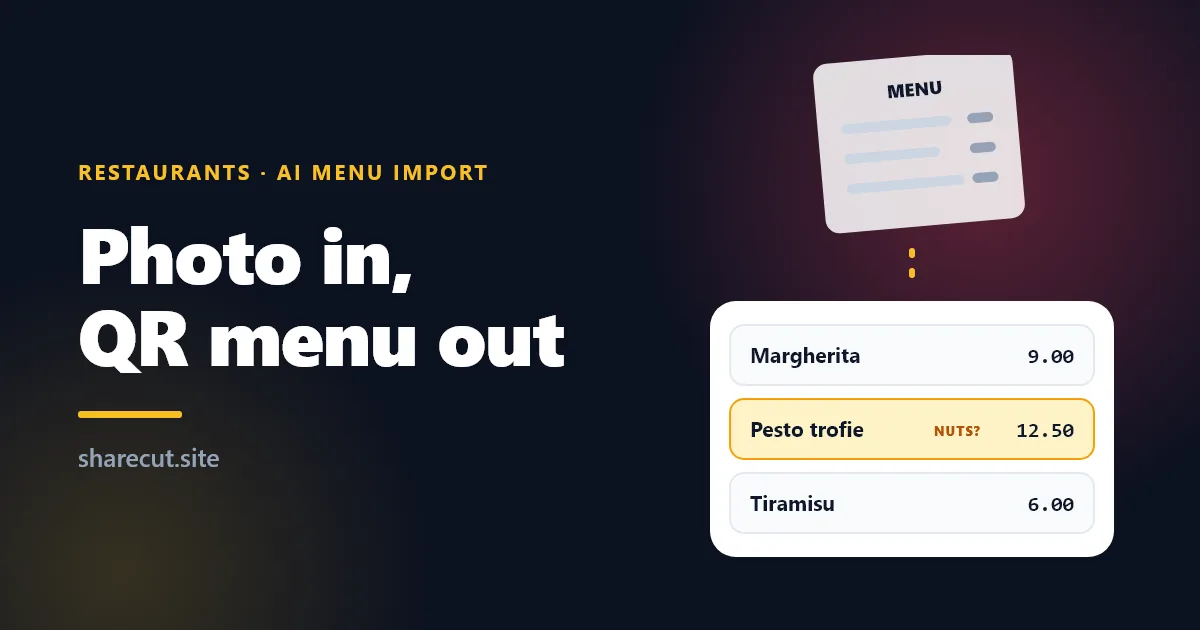
The useful part is a vision model reading a document. You give it a PDF or a few photos of the printed menu. It returns structured rows: the section a dish belongs to, the name, the description and the price. A good tool then shows those rows to you as an editable list rather than publishing them, because a model reading a photo is fast and usually right, and usually is not good enough for prices.
In ShareCut this is the import in the menu editor. It takes a PDF or photos of the printed menu, up to 4 MB per import with all pages added up, and gives you back rows to review. Three things it is built not to do:
- It does not publish anything by itself. The rows land in the editor. Nothing reaches a guest until you save the menu.
- It does not keep your file. The PDF or photos are read and dropped in the same request. They are not stored on our side.
- It does not write allergens as facts. When the model thinks a dish contains, say, gluten or nuts, that comes back as a suggestion you tick, never as a filled-in field.
The import is part of the Restaurant and Business plans, the same plans that include the digital QR menu. The AI is included in the price; there is no separate key or account to set up.
How to photograph a menu so the AI reads it
Most import errors start before the AI sees anything. A few minutes here save a lot of correcting later.
- Use the PDF if one exists. If your menu was designed on a computer, the original PDF has real text in it. A photo of a printout throws that away and asks the model to read it back.
- Shoot flat and straight. Lay the menu on a table, hold the phone parallel to it, and fill the frame with one page. A page photographed at an angle bends the columns, and columns are where prices get attached to the wrong dish.
- Light without glare. Daylight from the side works; a ceiling spot reflecting on laminated card does not. A white streak across a price is a missing price.
- One page per photo. Two pages in one shot halves the resolution of each and invites the model to merge them.
- Import a few pages at a time. The 4 MB limit counts every page together. A long menu goes in two or three imports, not one.
What the AI gets wrong, and how to spot it
The errors are not random. After the first import you will recognise them at a glance.
Prices on the wrong line
Menus that put the price at the end of a dotted line, or under a two-line description, are the classic case. The model attaches the price to the line above or below. Read the price column against the paper menu, top to bottom, before anything else.
Sections that turn into dishes
A heading like From the grill sometimes comes back as a dish with no price, and a dish written in capitals sometimes comes back as a section. Both are one click to fix once you see them.
Variants and supplements
"Small 6 / Large 9", "add burrata +3", "half portion available": these are the hardest lines for any reader, human or model. Decide how you want them shown, as two dishes or as a note in the description, and make them consistent.
Allergens
This is the one that matters. In the EU, Regulation (EU) No 1169/2011 lists 14 allergens that must be declared for food sold without packaging, and a restaurant answers for that information whether it is on paper or on a screen. A model can notice that a dish called "pesto" probably contains nuts. It cannot know that your kitchen makes pesto without them, or that the fryer is shared. Treat every allergen suggestion as a question to the kitchen, not an answer.
Five checks before you publish
- Every price, against the paper. Not a sample. All of them.
- Allergens confirmed by the kitchen, dish by dish, ticked by hand.
- Section order matches the way a guest orders: starters before mains, drinks where your staff expect them.
- Dishes you no longer serve are gone. A photo of last season's menu imports last season's dishes. A sold-out toggle handles today's shortages; deleted is for dishes that are not coming back.
- Open it on a phone, on mobile data. Scan the code the way a guest would, standing at a table, and read the menu once from top to bottom.
Then print. The QR code points at the menu's address, not at its content, so every later change, a new price, a dish off for the week, shows up on the table without reprinting. If you are still choosing a tool, our QR menu builder checklist covers what to ask before you print anything.
What the AI does after the menu is live
Importing is the one-off job. Once the menu is published, the same AI can help guests choose. ShareCut's assistant, Restaurant Buddy, sits on the menu page: a guest says what they feel like, in their own words or by tapping a few options, and gets dishes from your menu with your prices. Two rules make that safe to put in front of guests:
- It never invents a dish. Every dish it names is checked against an item in your published menu, and the price is read from the menu, not written by the model.
- It speaks the guest's language. Buddy works in six languages: English, Italian, Spanish, French, German and Portuguese.
You can try it as a guest on our demo menu, which is labelled as a demo and uses real Buddy. The AI menu assistant page explains what it costs and how the monthly AI allowance works: 1,500 requests on Restaurant and 4,000 on Business. Opening the menu and tapping options cost nothing; only a typed sentence, the one-off reading of a new menu version and an import count. Past the allowance Buddy keeps working on its option-based engine instead of failing.
What an AI menu generator will not do for you
It is worth being plain about the limits, because they are where the time goes.
- It will not price your dishes. Food cost, rent and what the street will pay are decisions, not text to extract.
- It will not design your printed menu. The output is a phone menu. If you still want paper on the table, keep your printed layout and put the QR code on it.
- It will not take responsibility for allergens. See above. This stays with the kitchen.
- It will not fix a menu that is hard to read. If guests struggle with your paper menu, the digital copy inherits the problem. The import is a good moment to shorten descriptions and cut dishes nobody orders.
Frequently asked questions
Is there a free AI menu generator?
Some tools generate menu text for free. Reading your own menu into a live QR menu needs somewhere to host that menu, so it comes with a plan. ShareCut's Restaurant plan starts with a 14-day free trial, with no payment details to start, then costs €19 a month. See plans and prices.
Can I import a handwritten menu?
Clear, printed-style handwriting on a chalkboard often reads well. Joined handwriting usually does not. Try one page; if most rows need retyping, typing is faster.
How many dishes can a menu have?
Up to 400 on Restaurant and 500 on Business, across all sections.
Does the QR code change when I edit the menu?
No. The code points at the menu's address, which stays the same. Edit as often as you like; the printed code keeps working. And if you ever cancel, the code keeps resolving.
What happens to the photos I upload?
They are read and discarded in the same request. Only the rows you save become part of your menu.
Try it on your own menu
Take the PDF, or three good photos, and import them into a new menu. Check the prices and the allergens against the paper, scan the code from a table, and decide from your own menu whether it saves you the evening. Create your QR menu, with the 14-day free trial on the Restaurant plan.